How to make a passport photo at home
Quick answer
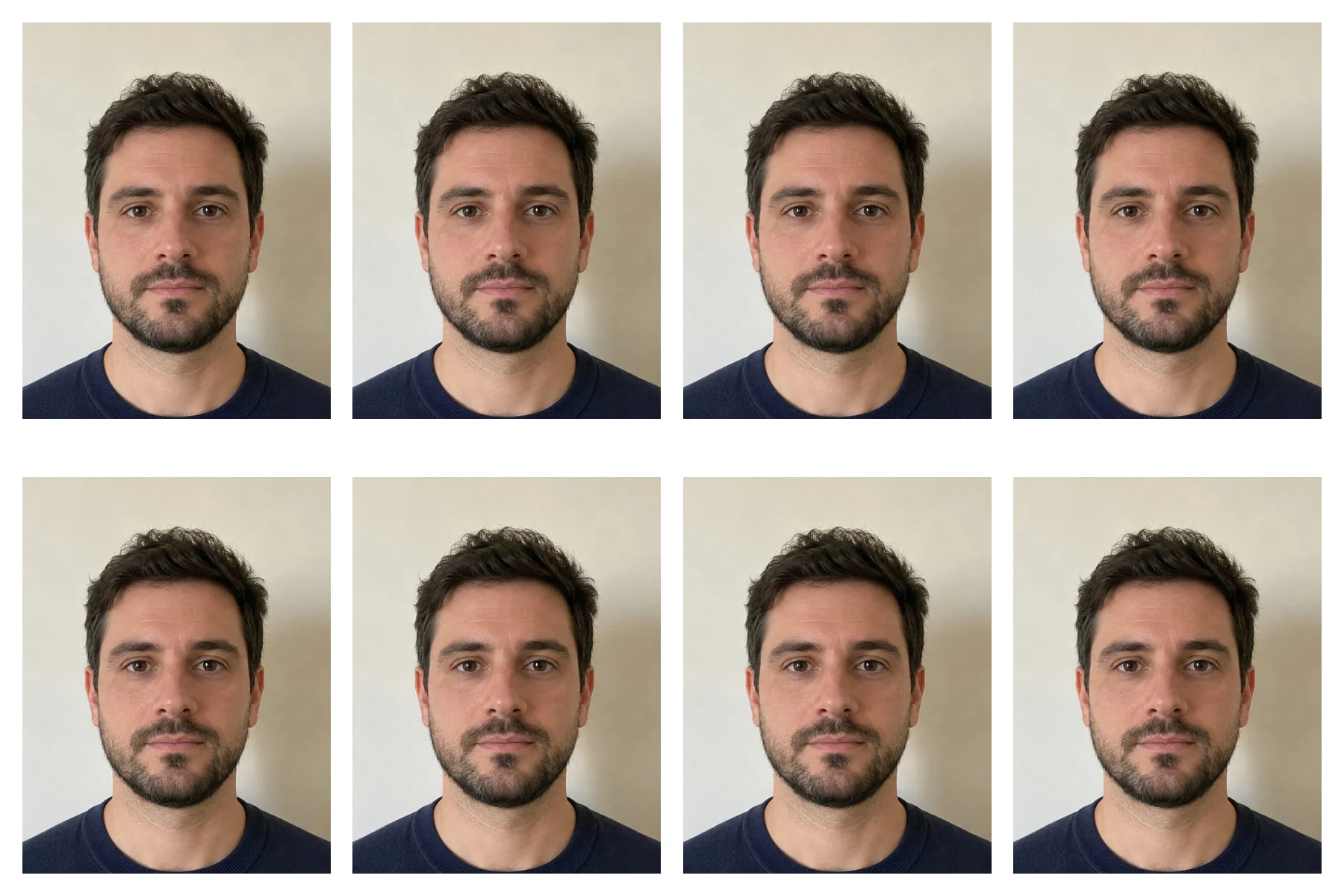
Choose the Crop tool, set Ratio to Custom with W 35 and H 45, frame the head and shoulders and press Enter or ↩. Then choose , set the units to Millimeters, Resolution to 300 and Width to 35: the photo becomes 413 × 531 pixels, exactly 35 × 45 mm in print. To print several, lay out eight on a 6 × 4 in sheet with a small margin, and print it at its real size with
- Time
- 8 minutes
- Level
- Intermediate
- You need
- A front-facing photo against a plain, light wall
- Works with
- JPEG, PNG, HEIC and other photos
A passport photo has to be an exact physical size, such as 35 × 45 mm, so two numbers matter: the shape of the crop and the resolution, how many pixels go into each inch of paper. At 300 pixels per inch (ppi), a common print standard, 35 mm needs 413 pixels and 45 mm needs 531.
In this tutorial you crop a phone photo to 35 × 45 mm, check the head size, and lay out eight copies on a 6 × 4 in print with room to cut.
Make a passport photo in six steps
Open the photo
Go to lilcactus.app and choose , or drag the photo onto the window. To follow along exactly, open the sample photo from this page.
Crop to 35 × 45 mm
Right-click the crop button in the toolbar (or press and hold it) and choose Crop. On the options bar, set Ratio to Custom, type 35 for W and 45 for H, and tick Delete cropped pixels, so the cut-off parts don’t travel with the photo later.
Drag a frame over the photo with the face in the middle, leaving room above the hair. In the sample the frame starts at the top edge of the photo, so the top of the hair sits about an eighth of the way down, and the chin about a sixth of the way up from the bottom edge. Drag inside the frame to move it, or drag a corner to resize it; the 35 : 45 shape is kept. Press Enter or ↩ to crop.

Ratio Custom, 35 by 45. 
Tick Delete cropped pixels. 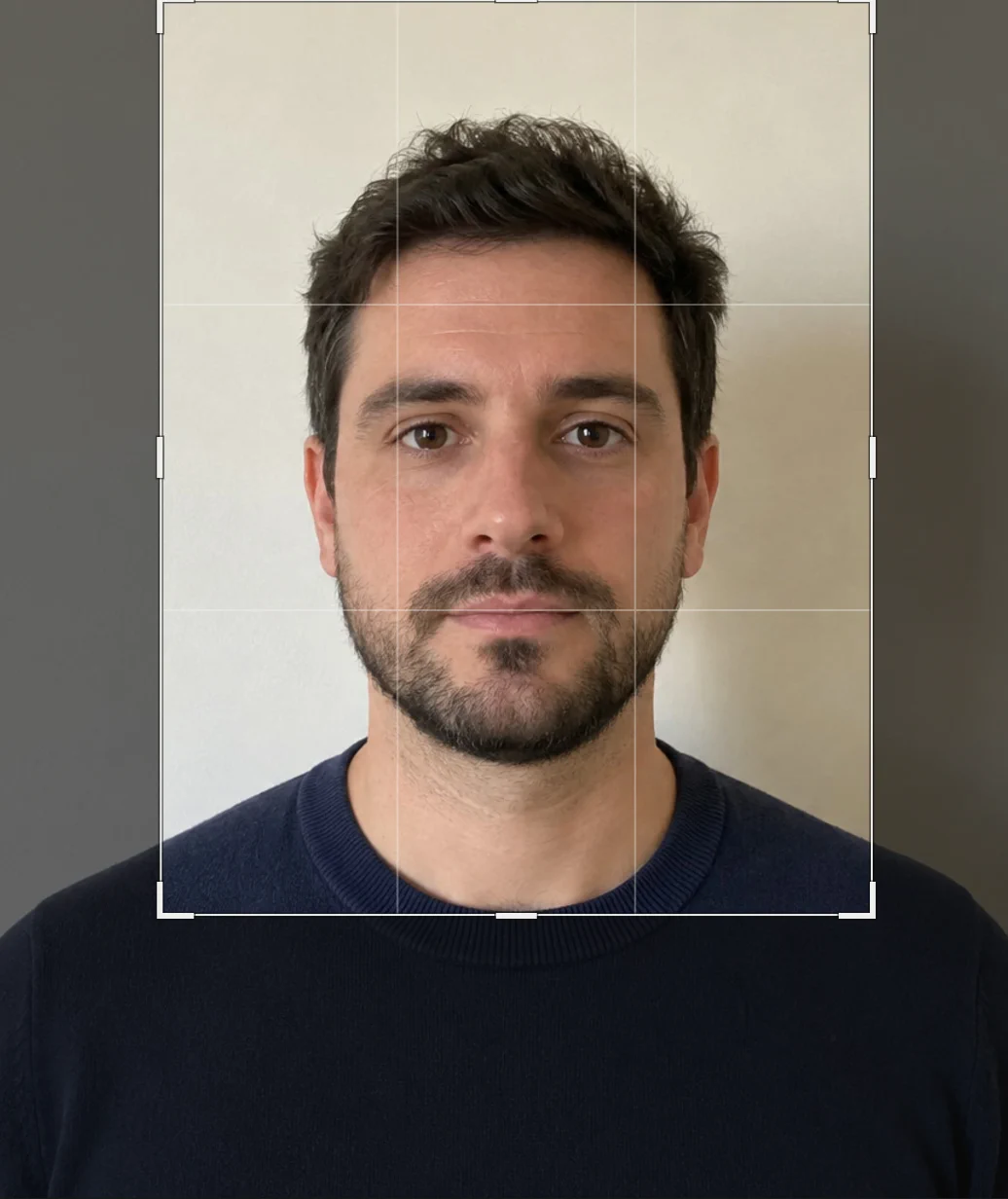
The frame: hair about an eighth down, chin about a sixth up. Set the print size and check the head
Choose Keep Resample ticked. Set Units next to Width to Millimeters, type 300 for Resolution and press Tab, then type 35 for Width and press Tab. The height follows at 45 mm and the summary reads 413 × 531 px. Choose Bicubic Sharper and click Resize.
Each country sets how tall the head should be. In the UK it is 29 to 34 mm from the chin to the crown; for a US 2 × 2 in photo, 1 to 1 3/8 in (25 to 35 mm) from the chin to the top of the head. Rules differ on whether hair counts, so check your own country’s rules.
To measure it, press M (or right-click the selection button and choose Marquee Select) and drag a rectangle from the top of the hair to the bottom of the chin: the status bar shows its size. At 300 ppi, 11.8 pixels make 1 mm, so the sample’s 376 px is about 32 mm, inside both example ranges. Choose afterward.
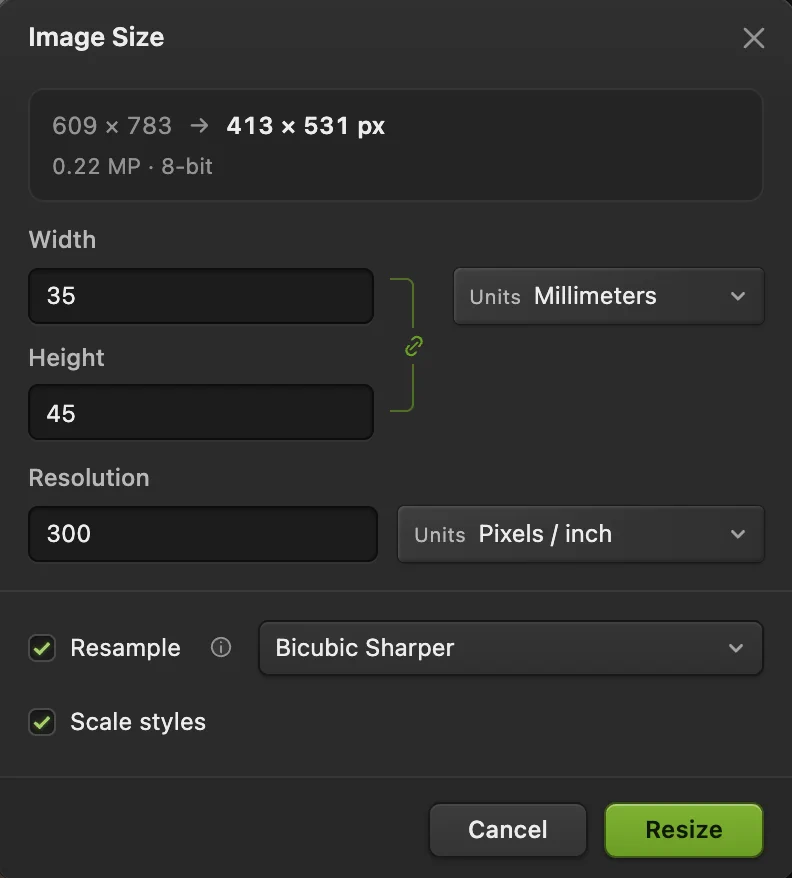
35 × 45 mm at 300 ppi: 413 × 531 pixels. 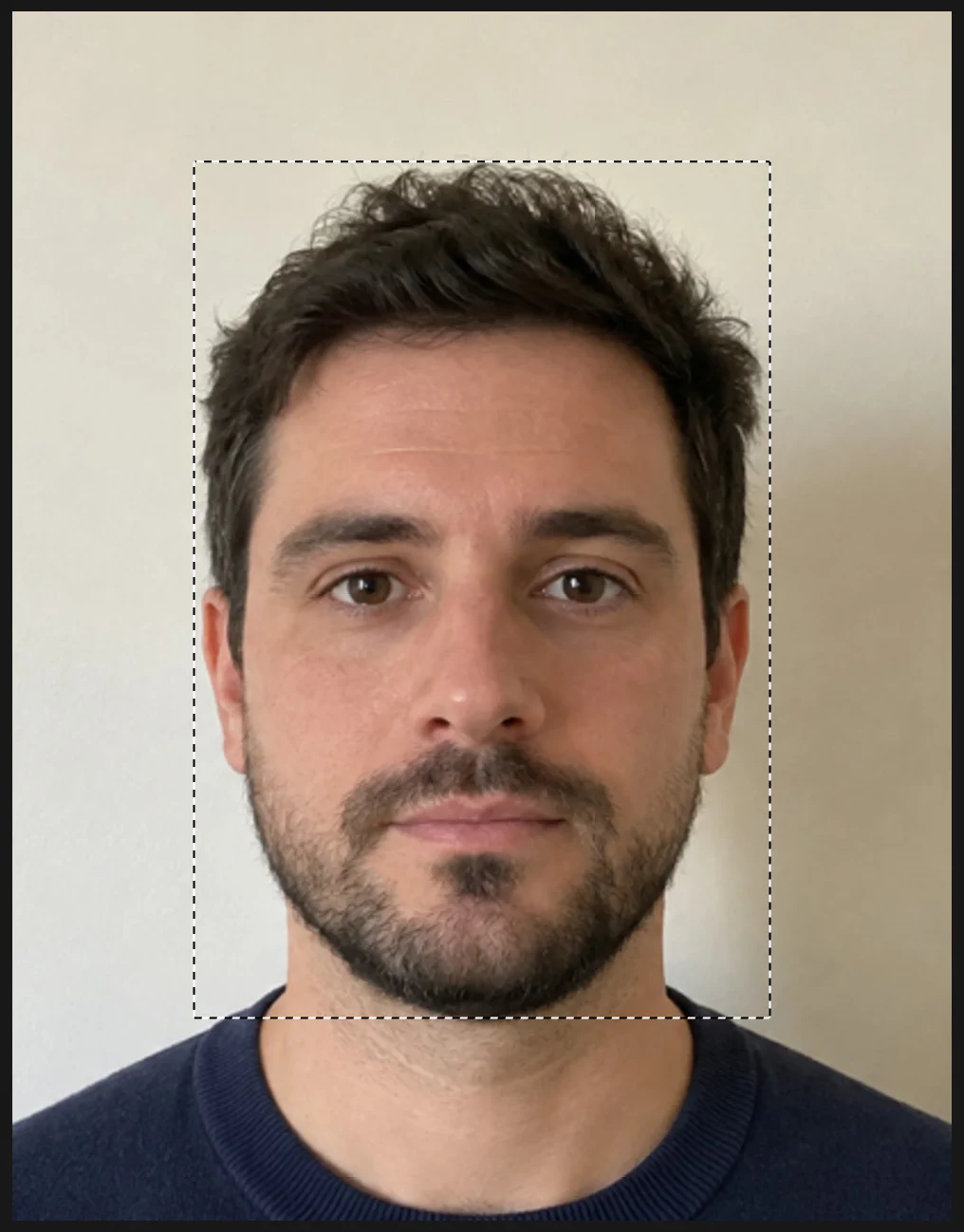
Drag from the top of the hair to the chin. 
Selection 376 px tall: about 32 mm at 300 ppi. Start the sheet and copy the photo onto it
A 6 × 4 in print at 300 ppi is 1800 × 1200 px. You lay the photos out on a slightly smaller sheet first and add a white margin at the end, so no photo touches the edge of the paper. Choose , set Units to Pixels, type 1740 for Width, 1140 for Height and 300 for Resolution, and click Create.
Click the photo’s tab above the canvas and choose ; if other documents are open too, a small dialog asks which one to copy into, so choose Untitled and click Duplicate. Then click the Untitled tab. The photo is on the sheet, in its top-left corner, as a layer called Background (copy).
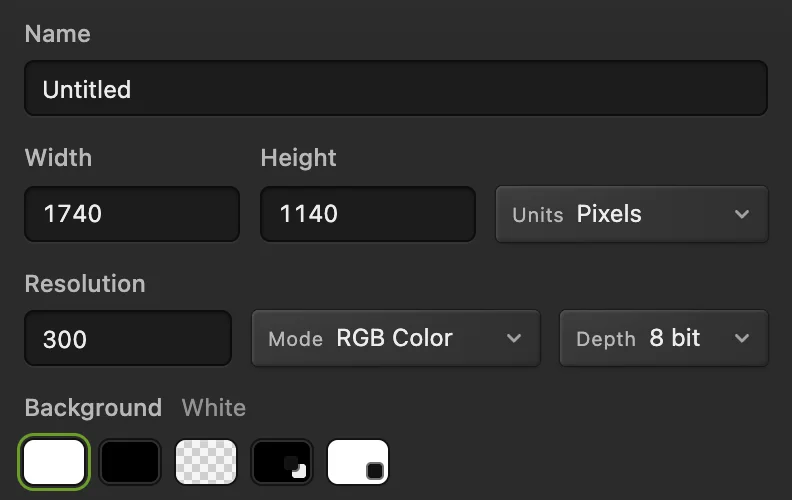
1740 × 1140 px at 300 ppi. 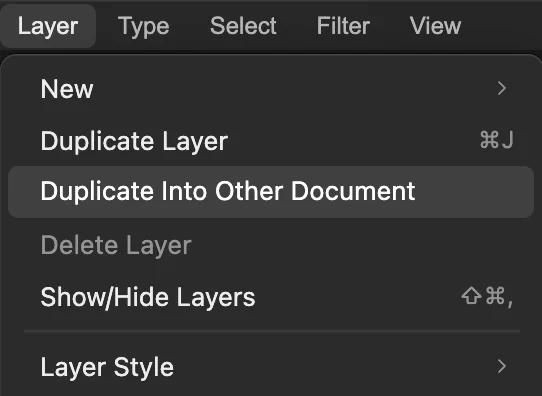
With the photo’s tab active, this copies the photo to the sheet. Fill the top row
Choose , then : with one layer selected, Align lines it up with the edge of the sheet, so the copy moves to the top-right corner. Choose twice more, for four photos in all.
In the Layers panel, click the top photo row and Shift or ⇧-click the lowest one, just above Background, to select all four. Choose : the four photos spread out evenly across the top. Then click the top photo row on its own and choose three times, so the row becomes one layer.
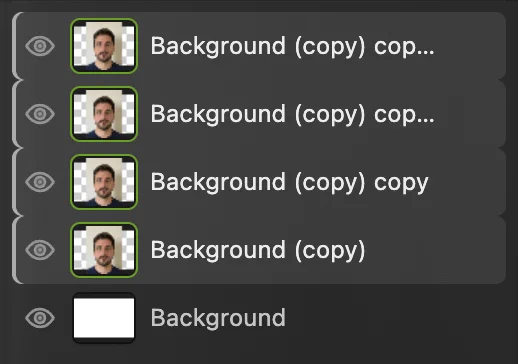
The four photos selected. Add the second row and the margin, then print or export
Choose , then : the copy of the row drops to the bottom, giving eight photos. Choose , type 1800 and 1200, keep the center Anchor and click Resize: a 30 px border (about 2.5 mm) is added all around. It is transparent in the editor and turns white in a JPEG.
To print it yourself, choose Lil Cactus prints the sheet at its real size from its resolution, so at 300 ppi it comes out at 6 × 4 in. On 6 × 4 in photo paper, choose landscape orientation and set the margins to none in the print dialog; on larger paper it prints at full size, ready to cut out. For a photo lab, choose , click Export and order a 6 × 4 in (also called 4 × 6) print. Then cut along the white gaps.
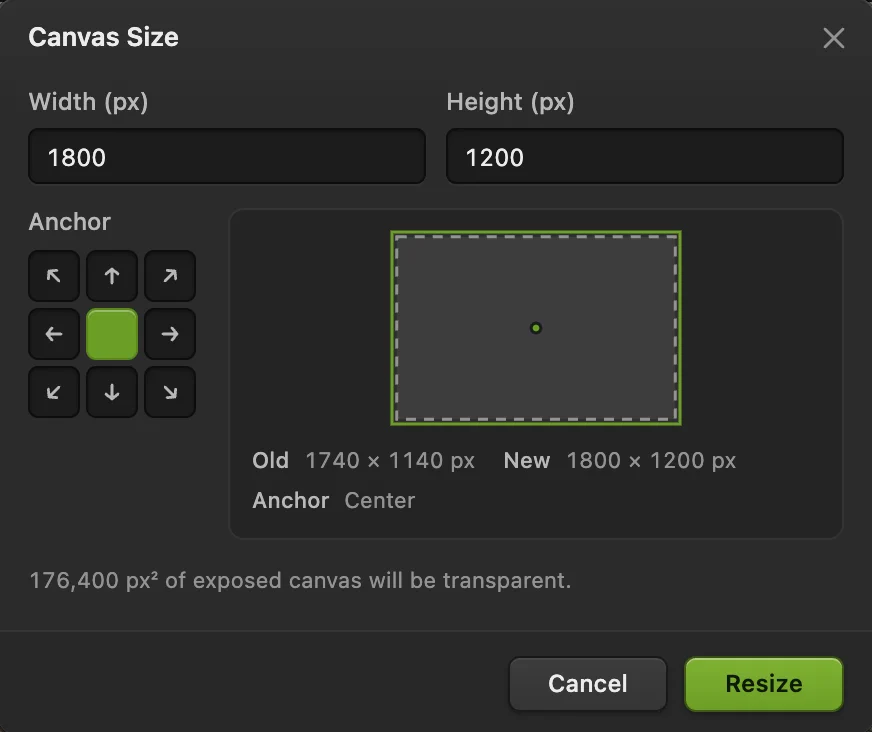
Canvas Size 1800 × 1200 from the center.
For an online application
Online forms usually state their own pixel size. Export straight after the crop in step 2, before step 3 changes the size: choose , tick Resize output to meet an exact size, and click Export. If the form’s size has a different shape, crop with that W : H ratio instead; if it asks for more pixels than your crop has, start from a larger photo, because enlarging adds no detail.
Other sizes
Use the same steps with the ratio and size your rules ask for. At 300 ppi:
| Photo size | Crop ratio (W : H) | Pixels at 300 ppi |
|---|---|---|
| 35 × 45 mm | 35 : 45 | 413 × 531 |
| 2 × 2 in (51 × 51 mm) | 1 : 1 | 600 × 600 |
| 50 × 70 mm | 50 : 70 | 591 × 827 |
| 33 × 48 mm | 33 : 48 | 390 × 567 |
For 2 × 2 in photos, set Units to Inches and Width to 2 in step 3. Six of them fill a 6 × 4 in sheet edge to edge, with no room to cut, so use a 7 × 5 in print: make the sheet 2040 × 1440 px in step 4, use three photos across (two duplicates and Merge Down twice in step 5), and set to 2100 × 1500 px in step 6.
Check the photo against the rules
- Head size: measure it as in step 3. If it is too big or small for your rules, choose until the photo is back to its full size (four times after measuring: Deselect, the selection, Image Size and the crop) and draw the frame larger or smaller.
- Background: most rules ask for a plain, light background without shadows. The sample’s wall has a soft shadow on the right; standing a step away from the wall, with the light in front of you, avoids it.
- Edits: rules usually forbid retouching or changing the face. Some, such as the UK’s for printed photos, also say the photo must not be cut down from a larger picture, so check yours.
Fix common problems
The sheet shows the whole uncropped photo
Delete cropped pixels was unticked, so the hidden parts came along. Close the sheet, undo the crop and image size in the photo, tick the box, and crop again.
Duplicate Into Other Document is grayed out
Only one document is open. Create the sheet first (step 4), then click the photo’s tab.
The print comes out the wrong size
prints the sheet at its real size from its resolution: 1800 × 1200 px at 300 ppi is 6 × 4 in. If the print came out smaller, either the paper’s printable area was smaller than the sheet, so it shrank to fit, keeping its shape, or the print dialog’s Scale was below 100%. In the print dialog, set Scale to 100%, choose landscape orientation and set the margins to none, or print on larger paper and cut the sheet out. If it came out larger than 6 × 4 in, check Resolution in : it should read 300. When you print the exported JPEG from another app, print it at 100% (actual size), not “fit to page”.
Coming from another editor
- Photoshop
- The Crop tool with W × H × Resolution, Image › Image Size…, and File › New with a 4 × 6 in preset.
- GIMP
- The Crop tool with a fixed aspect ratio, then Image › Print Size…
Passport photos: questions and answers
What resolution should a passport photo be?
Usually 300 pixels per inch for printing: a 35 × 45 mm photo is then 413 × 531 pixels. In Lil Cactus, set it in Image › Image Size… with Units Millimeters and Resolution 300.
Can I make a passport photo with my phone?
Yes, if the photo meets your country’s rules: facing the camera, even light, a plain light background. In Lil Cactus, crop and size it as on this page, then export the JPEG.
How many passport photos fit on a 6 × 4 print?
Eight photos of 35 × 45 mm, with room to cut between them. In Lil Cactus, lay them out as on this page. Six 2 × 2 in photos fill the sheet edge to edge, so use a 7 × 5 in print for those.
Will my passport photo be accepted?
Not necessarily: that depends on your country’s rules, which Lil Cactus doesn’t check. Compare the photo with the official requirements for size, head height, background and expression before you submit it.
Is my photo uploaded when I make a passport photo in Lil Cactus?
No. Everything runs in your browser, on your own device. See the privacy policy.
Keep going
 How to crop an imageChoose what stays in the frame, then set the shape and size.Beginner · 6 min
 How to resize an image online to exact pixels or print sizeExact pixels, percent or print size, without stretching.Beginner · 2 min
 How to compress an image to 100 KB or 200 KBLower the file size, check the detail, and fit an upload limit.Beginner · 3 min