How to open, view and edit a PSD file online
Quick answer
Open the PSD in Lil Cactus with or drag it onto the window. Layers, groups, masks, text, shapes and most adjustment layers open editable in the Layers panel. If a banner says a font is unverified, click Load matching font… before you edit the text. Save it back as a PSD with , or keep everything Lil Cactus can do with
- Time
- 5 minutes
- Level
- Beginner
- You need
- A PSD or PSB file
- Works with
- 8-bit and 16-bit RGB, grayscale and Lab PSDs keep their layers; supported print and ink modes convert to RGB
A PSD is Photoshop’s own file format. Unlike a JPEG or PNG, which hold one finished picture, a PSD keeps every layer separately: photos, text you can still retype, shapes, adjustment layers and masks. Lil Cactus reads those layers and turns each one into the matching Lil Cactus layer, so you can change one part without redoing the rest.
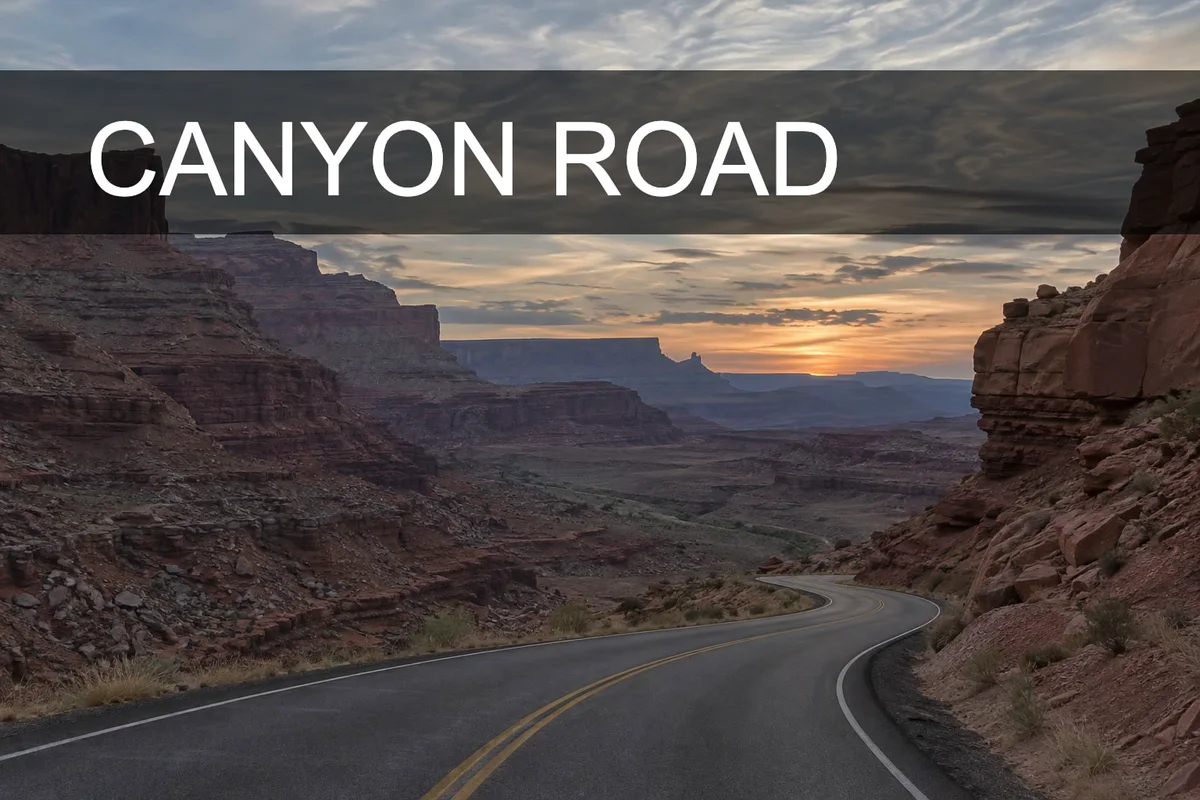
Not every Photoshop feature has a match. When a part can’t stay editable, Lil Cactus usually keeps how it looks as pixels. The sample poster opens fully editable; the sections after the steps list what changes with other files.
Open, edit and save a PSD in seven steps
Open the PSD
Go to lilcactus.app and choose (Ctrl+O or ⌘O), or drag the PSD onto the window. To follow along, open the sample from this page.
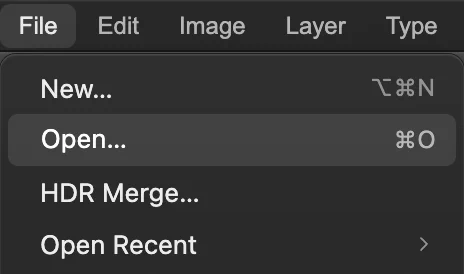
opens PSD and PSB files like any image. Check the layers
The Layers panel lists the PSD’s layers, top layer first. In the sample:
- Title (G badge) is a group. Click its arrow to close or open it.
- Text (T thumbnail) is live text you can retype.
- Band (S badge) is a shape layer at 60% opacity.
- Vibrance is an adjustment layer: it changes the colors of the layers below it. The white thumbnail beside it is its mask.
- Background is the photo.
When Lil Cactus had to keep part of a PSD as pixels, it usually shows a message “PSD import has … notes” with a Details… button that lists the layers and the reasons. The sample has no notes.
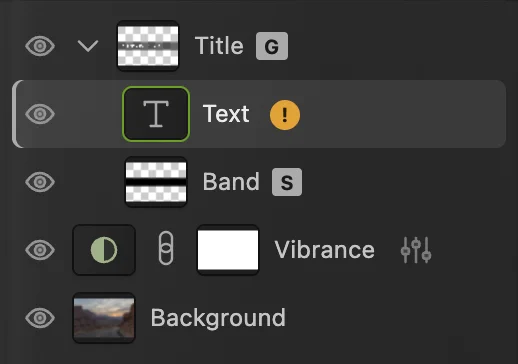
The sample’s layers, all editable. Load the font before editing text
A yellow banner under the options bar (the strip under the menus) may say “Original fonts unverified: Arial”, and the text layer gets an orange ! badge. Until Lil Cactus has the exact font file the PSD used, it shows the text as it was saved, and retyping could change its look.
Click Load matching font… on the banner and choose the font file (.ttf, .otf or .woff). The banner and the badge disappear. In Chrome and Edge you can instead open the Font list on the Text tool’s options bar and click Add installed fonts to let Lil Cactus use the fonts on your computer.
Tip Arial.ttf is in System › Library › Fonts › Supplemental on a Mac and in C:\Windows\Fonts on Windows. Fonts you load stay available for later PSDs in the same browser.

The font banner, under the options bar, with Load matching font… at its right end. Edit the text
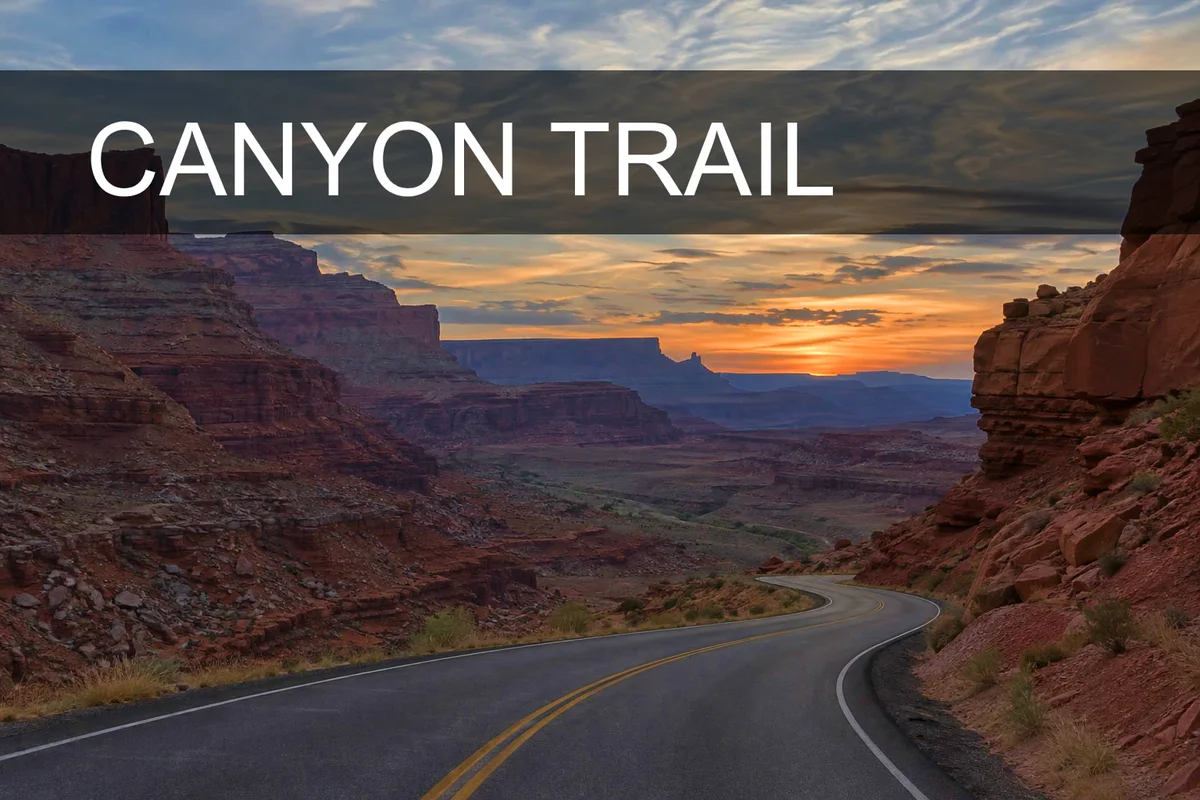
Press T for the Text tool and click inside the words CANYON ROAD. Press Ctrl+A or ⌘A to select all of the text and type CANYON TRAIL. To finish, press Ctrl+Enter or ⌘↩ or click the green tick after Attach to Path on the options bar; Esc cancels the change and keeps the old words.

The green tick finishes the edit. 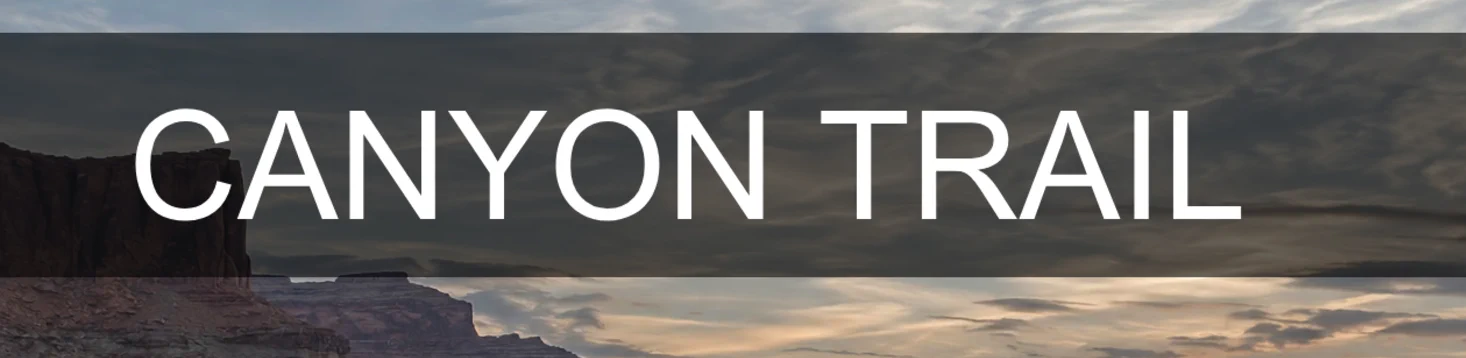
The title is retyped in place, with the same font, size and color. Change the adjustment layer
Click the sliders icon at the right of the Vibrance row. The Vibrance dialog opens with the PSD’s settings, 40 and 0. Type 100 for Vibrance and 60 for Saturation, and click Apply: the sky and the rocks turn noticeably more colorful. The photo itself isn’t changed, so you can set the values back at any time.

The sliders icon opens the adjustment’s settings. 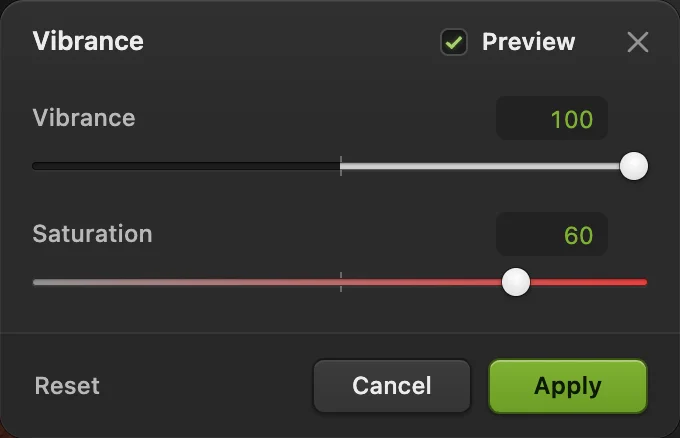
Vibrance 100 and Saturation 60, ready to apply. Save it back as a PSD
Choose (Ctrl+S or ⌘S). In Chrome and Edge, a PSD you opened with or dragged onto the window is written straight back into its file. The sample from this page has no file on your computer, so Save first asks where to save and suggests canyon-poster.psd; after that, Save writes to the file you chose. Firefox and Safari can’t write files, so each Save downloads a new copy.
The first time you save an opened or dragged file, Chrome or Edge asks whether Lil Cactus may save changes to it. If Save lists features the PSD cannot preserve, read those notes before confirming. A supported edit can save cleanly without a loss warning. To retain every editable Lil Cactus setting, save a project copy as well.
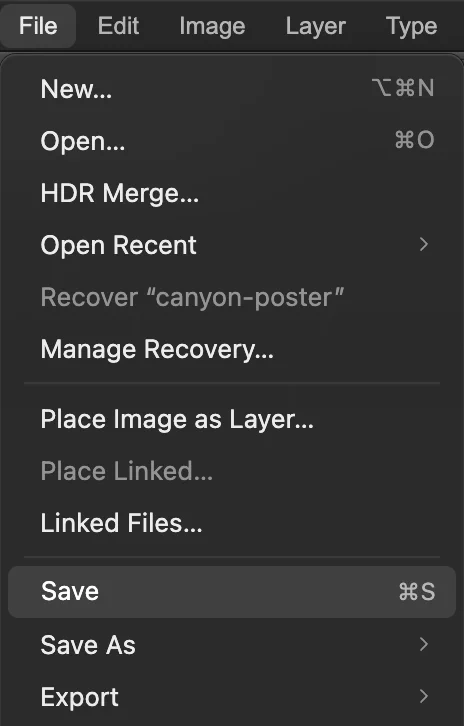
keeps the PSD format. Keep a project, or export an image to share
A PSD can’t hold every Lil Cactus feature. To keep everything editable, also save (Ctrl+Shift+S or ⇧⌘S). From then on, updates the project; to update the PSD again, use , after which Save goes back to writing the PSD.
To send the poster to someone without an editor, choose or PNG… and click Export. The export is a new, flat picture; the PSD keeps its layers.
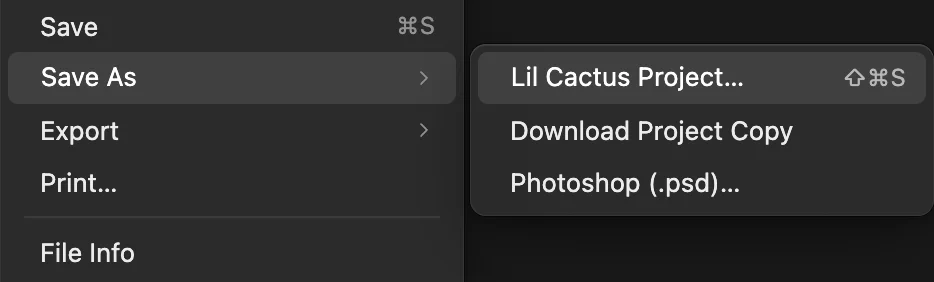
and, two rows below it, Photoshop (.psd)…
What opens editable
PSD files can contain layers, masks, text, shapes, adjustments and other editable elements. Read the import notes to see how the contents of your file were opened, and keep the original PSD.
What opens as pixels, or not at all
Some PSD content may open as pixels to preserve its appearance, rather than as editable layers. Read the import notes to see what you can change, and keep the original PSD.
Print-oriented files may open as an RGB appearance rather than editable CMYK. If a file cannot be opened, try an RGB copy from the original application. Save your work as a Lil Cactus project to retain the imported document and later edits.
Fix common problems
I don’t have the font file
Lil Cactus keeps the original saved text appearance until you edit it. Retyping can use an available system font or the bundled Liberation Sans and may change spacing. Choose a matching font from the Font list before editing.
Some layers are pixels rather than editable text or adjustments
Open Details… on the import message. It identifies the preserved parts and any unsupported features. Keep a copy of the original PSD. A Lil Cactus project retains the imported state and later edits.
Opening reports a size or storage error
Read the specific message. A smaller RGB copy can help when the browser cannot hold the file or its decoded layers. Keep the original, rather than deleting layers from it.
Save says the linked original changed outside this tab
The PSD was changed by another app after you opened it. Save your current work as a copy, or reopen the PSD and redo the change.
What to do next
- Get comfortable with the Layers panel: how to use layers.
- Change color without touching the photo: adjustment layers.
- Edit what’s inside a Smart Object: Smart Objects.
- Make the exported image the right size: resize an image.
Coming from another editor
- GIMP
- File › Open… opens a PSD as layers; File › Export As… with a .psd name saves one.
PSD files: questions and answers
Can I use Lil Cactus as an online PSD viewer?
Yes. Open the PSD with File › Open… or drag it onto Lil Cactus to inspect the design and its layers without editing it. You do not need Photoshop or an account. Some Photoshop features open as pixels instead of editable layers. See what stays editable and what changes on import.
Can I open a PSD file without Photoshop?
Yes. In Lil Cactus, choose File › Open… or drag the PSD onto the window. Layers, groups, masks, text, shapes and most adjustment layers open editable.
Can I open several PSD files at once?
Yes. In Lil Cactus, select several files in the File › Open… dialog, or drag them onto the window together; each opens in its own tab.
Does Lil Cactus keep 16-bit PSDs at 16 bits?
Yes. In Lil Cactus, 8-bit and 16-bit PSDs open at their own depth with their layers, and Save writes them back at the same depth.
Are guides and layer comps kept?
Yes. In Lil Cactus, a PSD’s guides and layer comps open with the document and are written back when you save it as a PSD.
Can I edit a PSD on an iPad or phone?
Use a computer with a mouse or trackpad. Full touch and tablet editing is not supported.
Is my PSD uploaded when I open it in Lil Cactus?
No. Lil Cactus reads and saves the file in your browser, on your own device. See the privacy policy.
Keep going
 How to use layers in a photo editorStack, reorder, fade, hide and group the parts of a picture.Beginner · 6 min
 How to use adjustment layersColor and tone changes you can retune, hide or limit to one area.Beginner · 5 min
 How to use Smart ObjectsResize, filter and swap a picture without ever losing its original pixels.Intermediate · 6 min