How to merge bracketed exposures into an HDR photo
Quick answer
In Lil Cactus, choose , click Add photographs… and pick your brackets, for example shots at −2, 0 and +2 EV. Lil Cactus reads each photo’s exposure from its camera data; keep Align photographs on, set Deghosting to Off for a perfectly still scene such as the sample, tick the box confirming a static scene, and click Merge HDR. Then choose , leave White point at its starting value, the brightest value in the photo, adjust Exposure (0.5 EV for the sample) and click Create SDR copy to get a normal 16-bit photo.
- Time
- 8 minutes
- Level
- Advanced
- You need
- 2 to 32 photos of the same scene at different exposures, ideally from a tripod
- Works with
- JPEG, PNG or TIFF brackets, 8 or 16 bits, sRGB
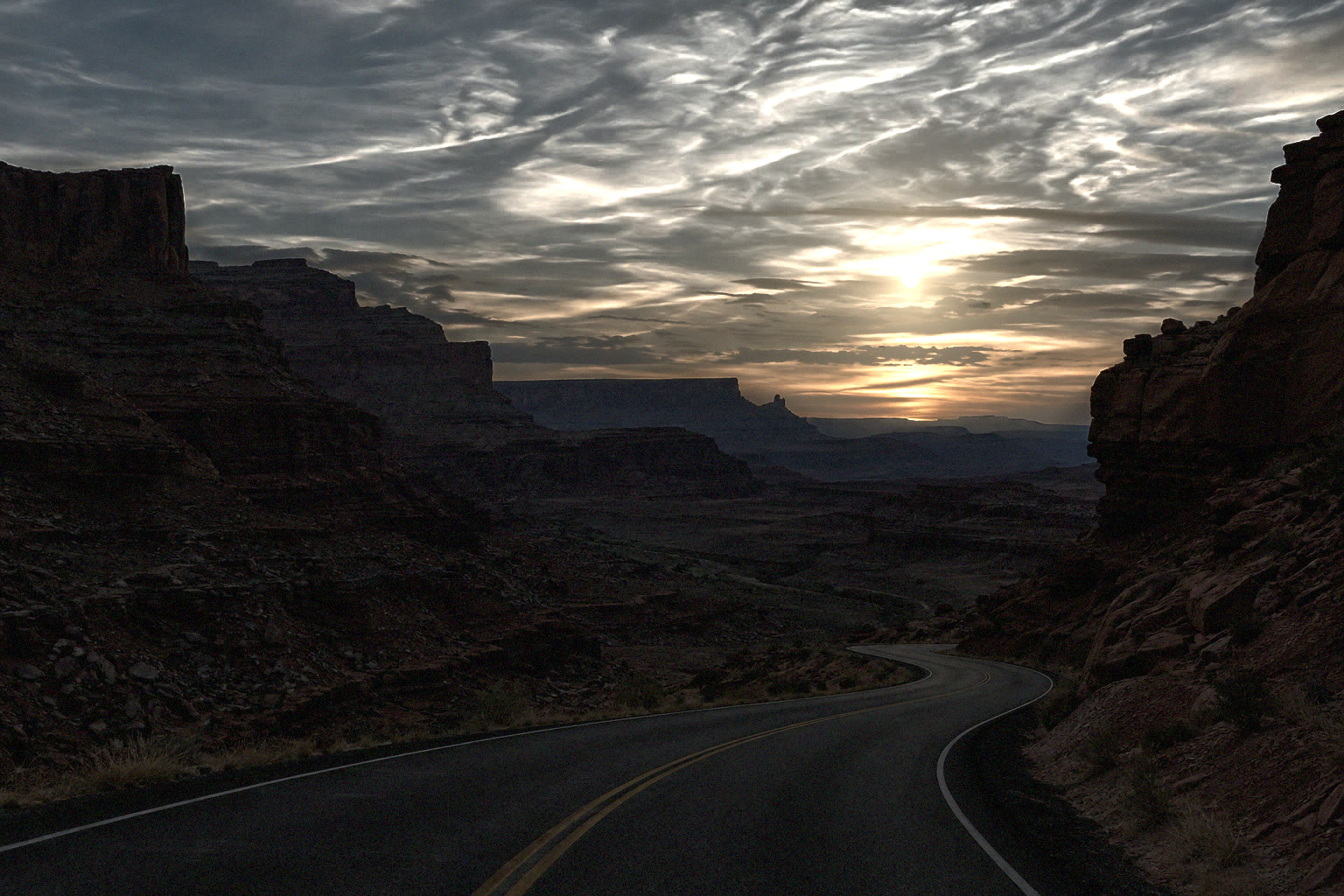
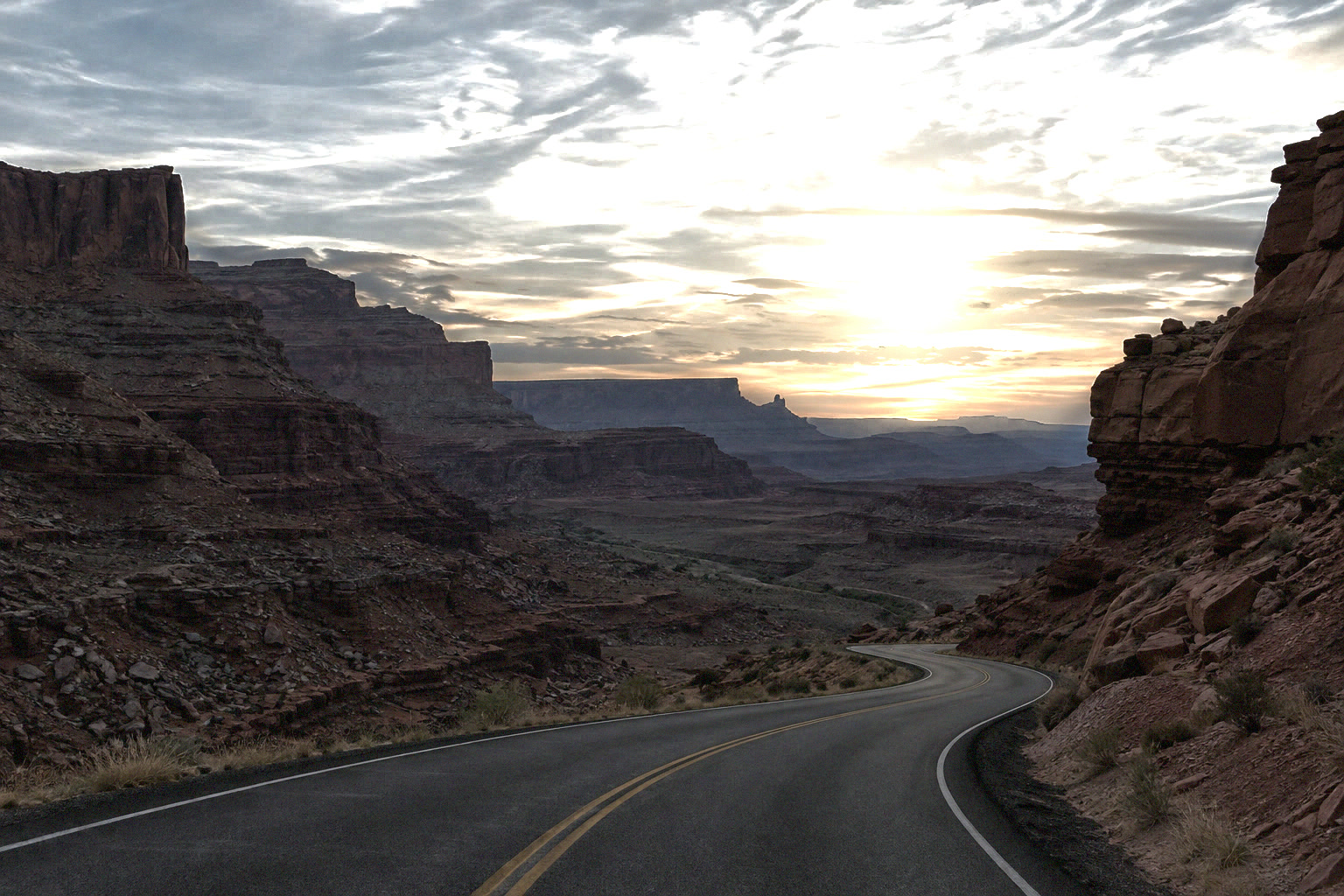
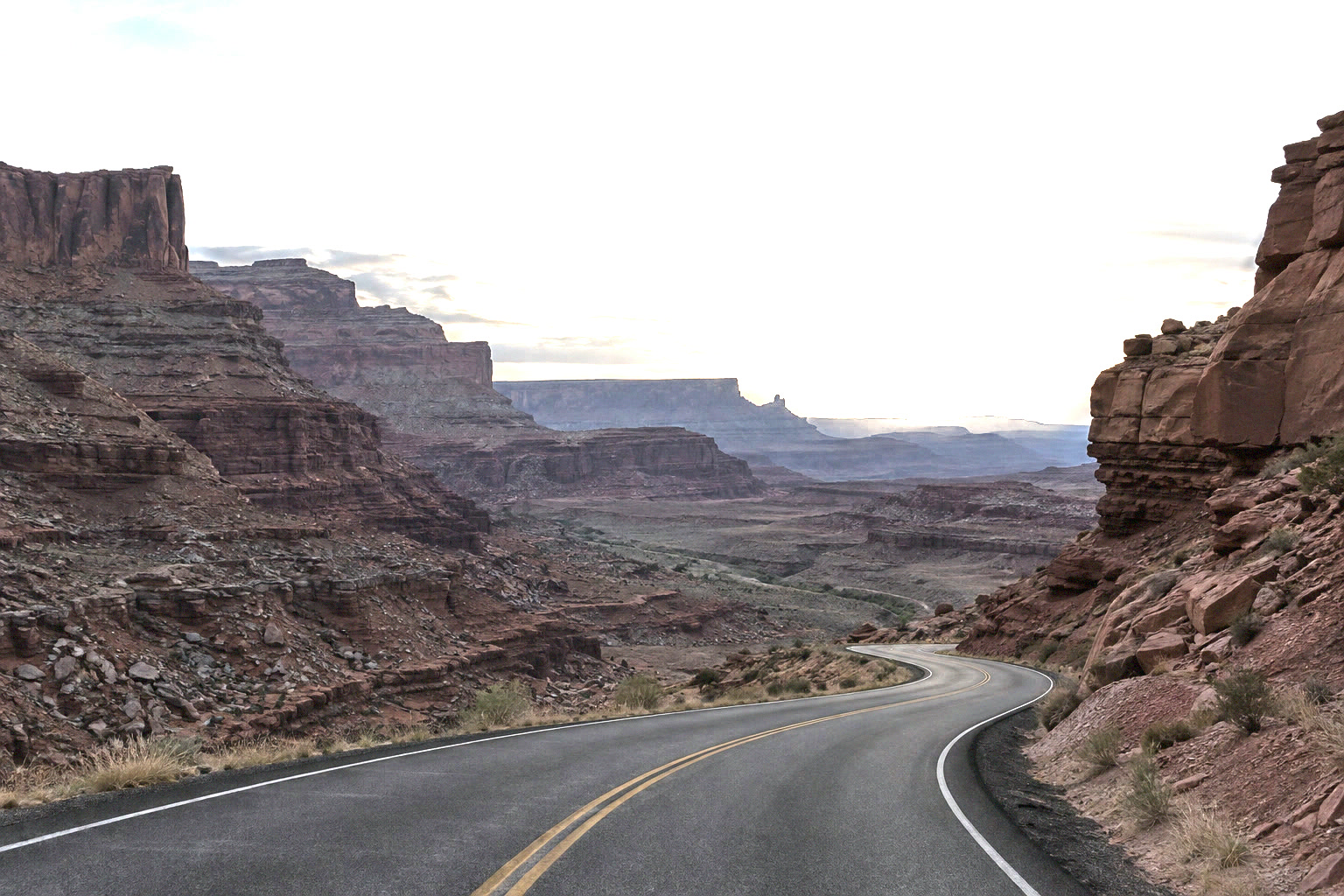
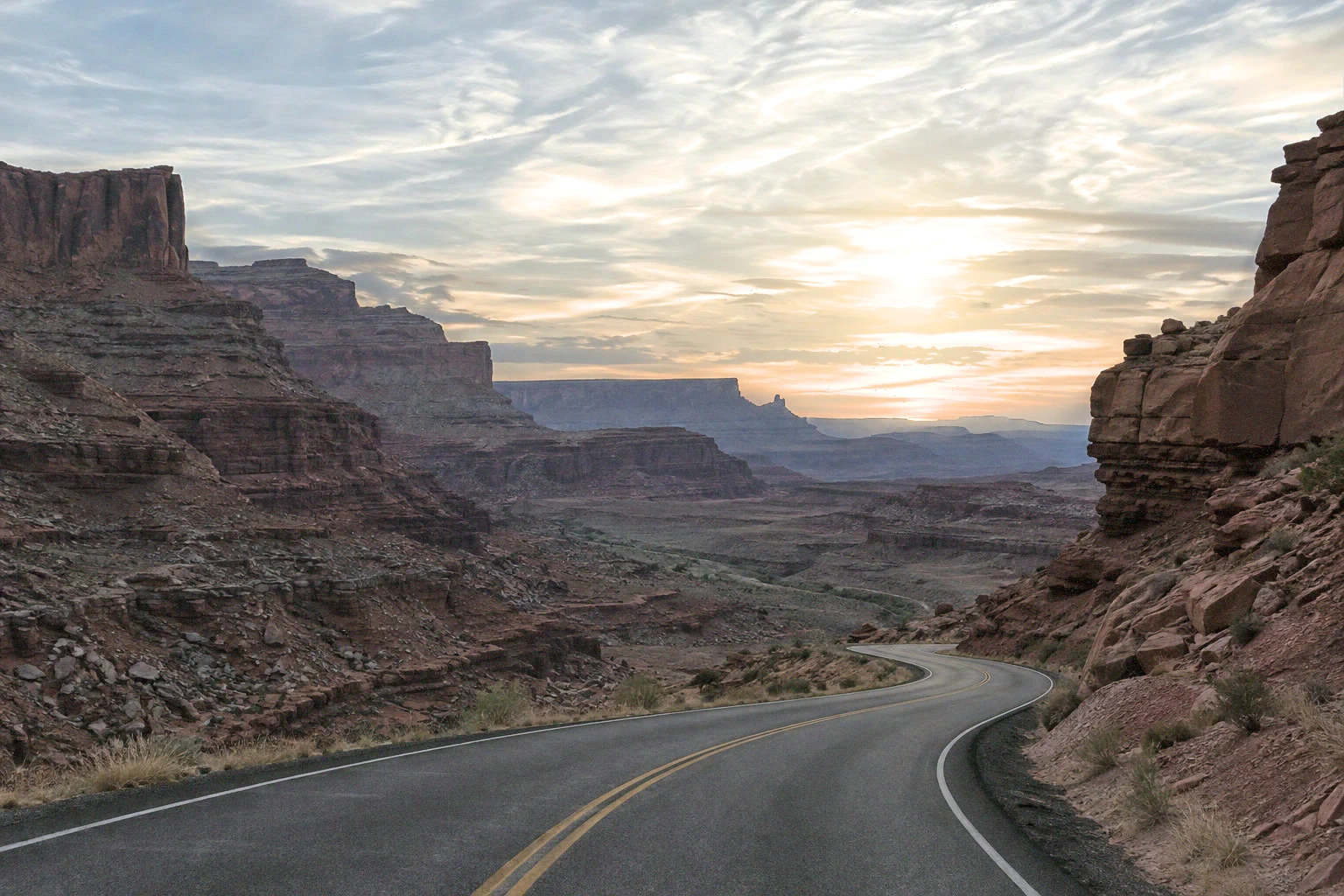
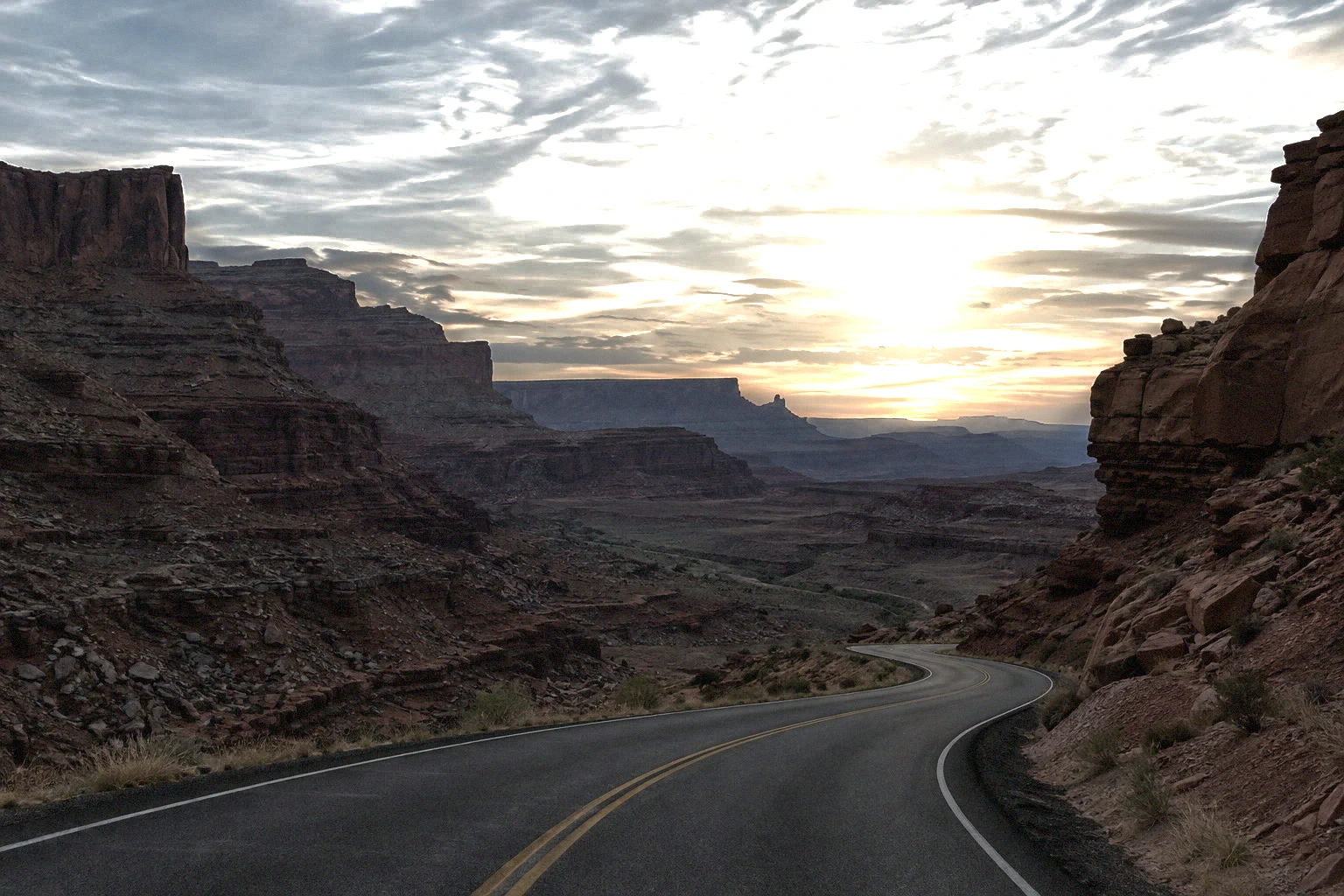
A camera captures a limited range of brightness in one shot. Point it at a sunset and either the sky burns out or the ground goes dark. Bracketing means taking the same scene several times at different exposures: one dark enough to keep the bright sky, one normal, one bright enough to open the shadows.
HDR merge combines them into a single image that holds the whole range, stored as 32-bit floating-point values with far more brightness range than any screen can show. Tone mapping then squeezes that range back into a normal photo, compressing the highlights gently instead of cutting them off.
Merge HDR in six steps
Shoot or collect your brackets
Use a tripod if you can, and keep the aperture, ISO, zoom, white balance and focus fixed; change only the shutter speed. Two stops (EV) apart is typical: −2, 0, +2. Many cameras do this automatically with auto exposure bracketing (AEB). Save JPEG, PNG or TIFF files. HDR Merge doesn’t read RAW files directly: open each RAW in Lil Cactus with identical Camera RAW settings and export it with , which keeps 16 bits and the camera data, including the shutter speed.
To follow along, download the three sample brackets from the top of this page.
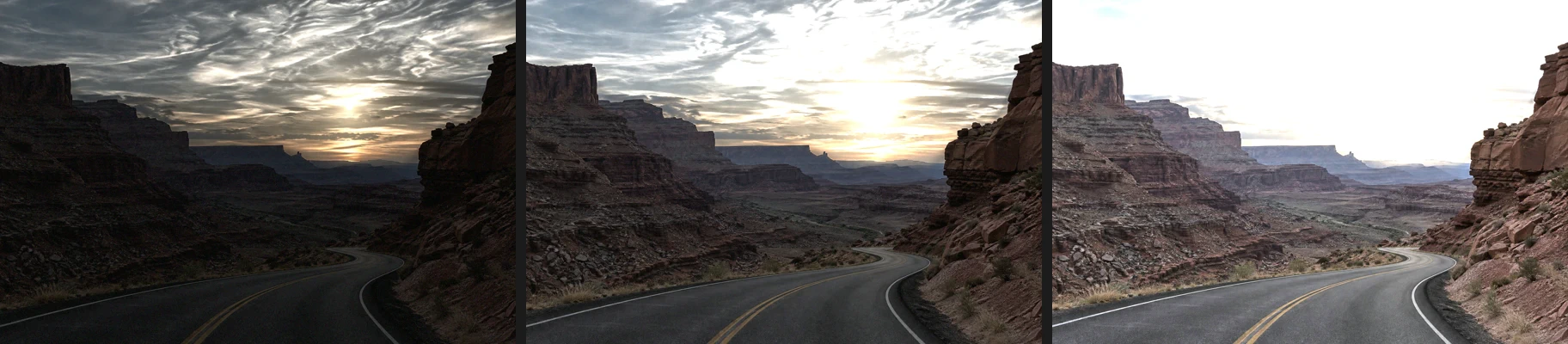
The sample brackets: −2, 0 and +2 EV. Choose File › HDR Merge…
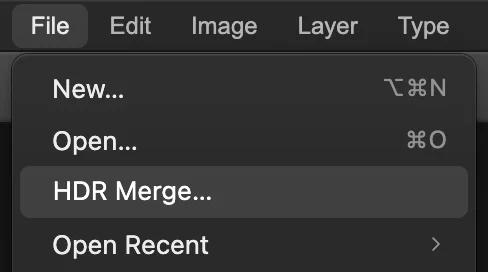
You don’t need to open a document first: HDR Merge… is in the File menu, just below Open…, and creates a new document.
Add the photographs
Click Add photographs… and select all the brackets at once. Check Relative EV for each photo. If a photo has no camera data, enter its EV yourself; positive means brighter.
Reference marks the photo everything is aligned to; by default the middle exposure. If something moved, such as a person or a branch, choose the photo where it looks best.
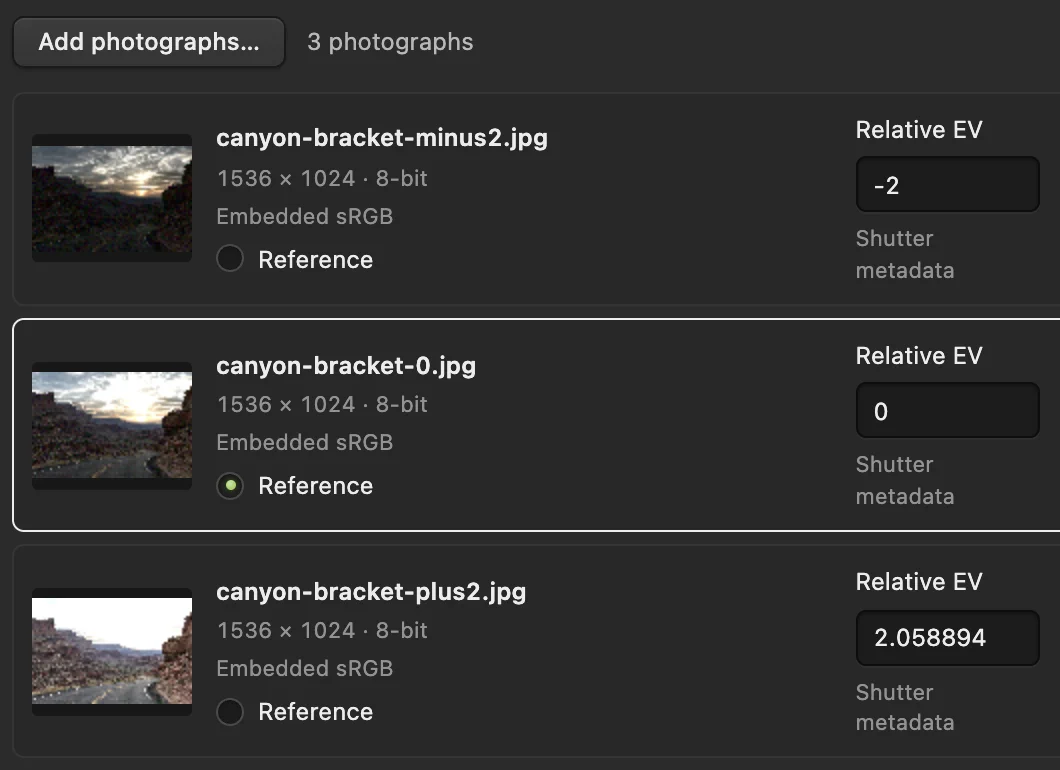
The three brackets, with EV read from their shutter speeds. Add photographs… is ringed. - Relative EV, from the camera data
Check the options and click Merge HDR
- Align photographs (on by default) corrects small camera movement between shots, so handheld brackets work too. Leave it on.
- Deghosting (default Medium) uses the reference photo wherever something moved, so you don’t get see-through people or doubled leaves. For the still scene in this sample, choose Off. High looks for finer movement. Changing Deghosting clears the confirmation box below.
- Tick the confirmation box (its wording follows the Deghosting choice): it tells Lil Cactus the scene is static and the photos share settings, which the merge relies on.
Click Merge HDR. The status line at the bottom of the dialog shows the progress of the merge. When it finishes, a message reads 32-bit float · SDR preview. It may add that some clipped channels could not be recovered; lists the merge’s notes.
Choose Image › Tone Map to SDR…
The merged document is 32-bit floating point; the status bar reads 32-bit float · SDR preview. What you see is only a preview: to edit and export it as a normal photo, choose
- Exposure (−5 to 5 EV, default 0) sets the overall brightness.
- White point (EV) sets how bright a scene value must be to become pure white. It starts at the brightest value in the photo (2.07 for the sample), so the brightest areas just reach white; a strongly colored highlight, such as the red glow around the sample’s sun, can still reach full strength in one channel. Raising it compresses the highlights more; lowering it lets bright areas burn out for punchier contrast.
The sample keeps the starting White point and raises Exposure to 0.5. Click 100% above the preview to judge detail, then Create SDR copy.
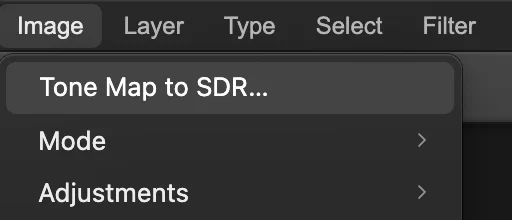
, available for 32-bit documents. 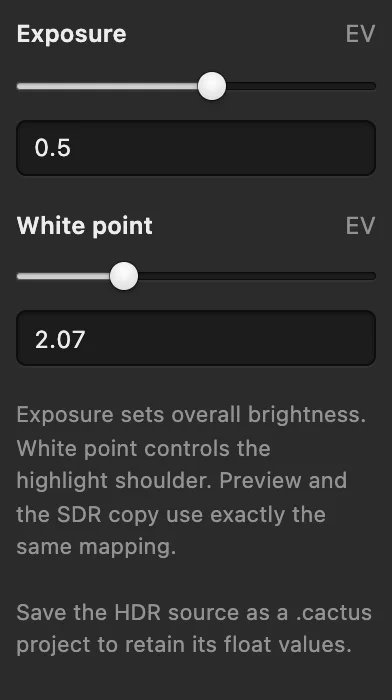
Exposure raised to 0.5 (ringed), with White point left at its starting 2.07. Edit and export the SDR copy
Create SDR copy opens a new 16-bit sRGB document, named HDR Merge – SDR, and straight away the Export as PNG dialog: export from there, or click Cancel to edit first. The HDR document stays open. Edit the copy like any photo, with Curves or Photographic Development for contrast and color, then export it with
To keep the full HDR values for later, save the HDR document with (Ctrl+Shift+S or ⇧⌘S).
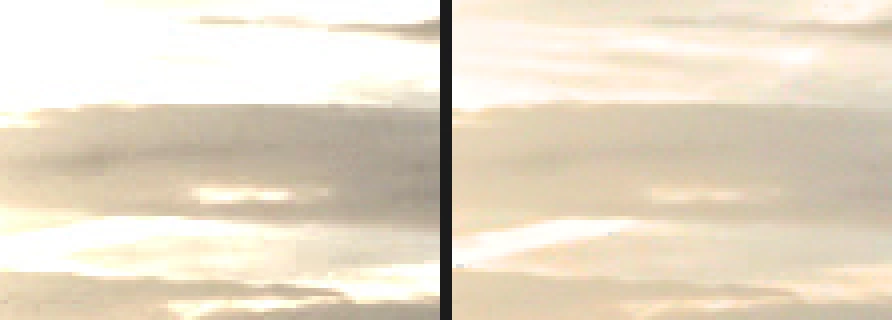
Sky to the right of the sun, enlarged: the single 0 EV exposure (left) and the HDR result (right). 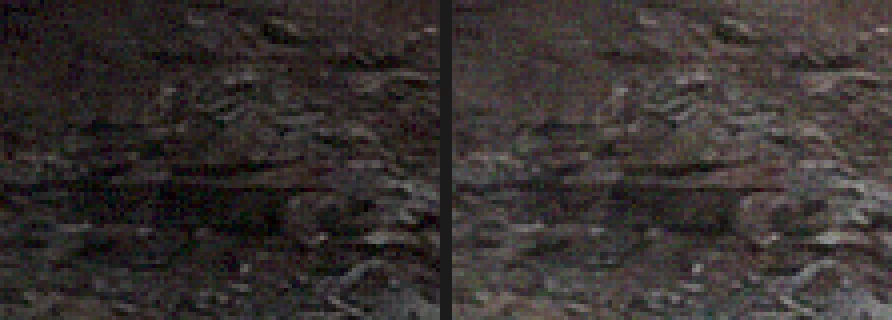
The shaded canyon wall, enlarged: the single exposure (left) and the HDR result (right).
Only have one photo?
A single photo can’t become a true HDR image: what the sensor clipped is gone. But a RAW file often holds two or three stops more range than a JPEG. Lower Highlights and raise Shadows in Photographic Development, or use Shadows/Highlights on a JPEG, for a similar look within that photo’s limits.
Why merging recovers more than one exposure
Each bracket captures a different range of brightness. The merge combines them, and tone mapping turns the result into a photo you can edit and export.
Fix common problems
Ghosts: see-through people or doubled leaves
Something moved between shots. Try a stronger Deghosting setting, tick the confirmation box again, and pick as Reference the photo where the moving part looks best. If the merge then refuses the photos, see the next entry.
“Not enough of the scene is well exposed in two or more of these photos to combine them”
The merge compares the parts of the scene that are well exposed in more than one photo, and found too few, usually because the exposures are too far apart. Add exposures in between, for example every stop instead of every two, taken with the same color settings and processing.
Merge HDR stays grayed out
Tick the static-scene box (and Assign sRGB to all untagged inputs if it appears), and check the message under the options: every photo needs a Relative EV, and photos with camera data must share aperture, ISO and focal length.
“This photograph has a non-sRGB profile”
HDR Merge works in sRGB. Convert each bracket to sRGB first, for example with and Export, or export them as sRGB from your RAW developer.
Blurry or doubled edges everywhere
The camera moved too much for alignment. Shoot from a tripod, or use fewer, closer brackets.
What to do next
- Add contrast to the SDR copy: how to use Curves.
- Develop RAW brackets first: how to edit a RAW photo.
- Join several frames side by side instead: stitch a panorama.
- Resize the result for the web.
Coming from another editor
- Photoshop
- File › Automate › Merge to HDR Pro… In Lil Cactus the same job is File › HDR Merge… followed by Image › Tone Map to SDR…
HDR merging: questions and answers
How many exposures do I need for HDR?
Three exposures two stops apart (−2, 0, +2 EV) cover most scenes. Lil Cactus accepts 2 to 32 brackets; very high-contrast scenes such as a window interior may need five.
Can I merge RAW files to HDR in Lil Cactus?
Not directly. In Lil Cactus, open each RAW bracket with identical Camera RAW settings, export it with File › Export › TIFF…, then add the TIFFs to File › HDR Merge… The TIFFs keep the camera data, so the Relative EV is read from the shutter speeds.
Can I export a 32-bit HDR file from Lil Cactus?
No. On a 32-bit document, File › Export › JPEG…, PNG… and the other image formats open Image › Tone Map to SDR… instead, which makes a normal 16-bit copy to export. To keep the full HDR values, save the document with File › Save As › Lil Cactus Project…
Why does my merged HDR look gray?
A 32-bit HDR holds more range than a screen shows, and tone mapping compresses it. In Lil Cactus, lower White point in Image › Tone Map to SDR… for more contrast, then fine-tune the SDR copy with Curves.
Are my photos uploaded when I merge HDR in Lil Cactus?
No. Merging and tone mapping run in your browser on your own device, and the photos are never sent to a server. See the privacy policy.
Keep going
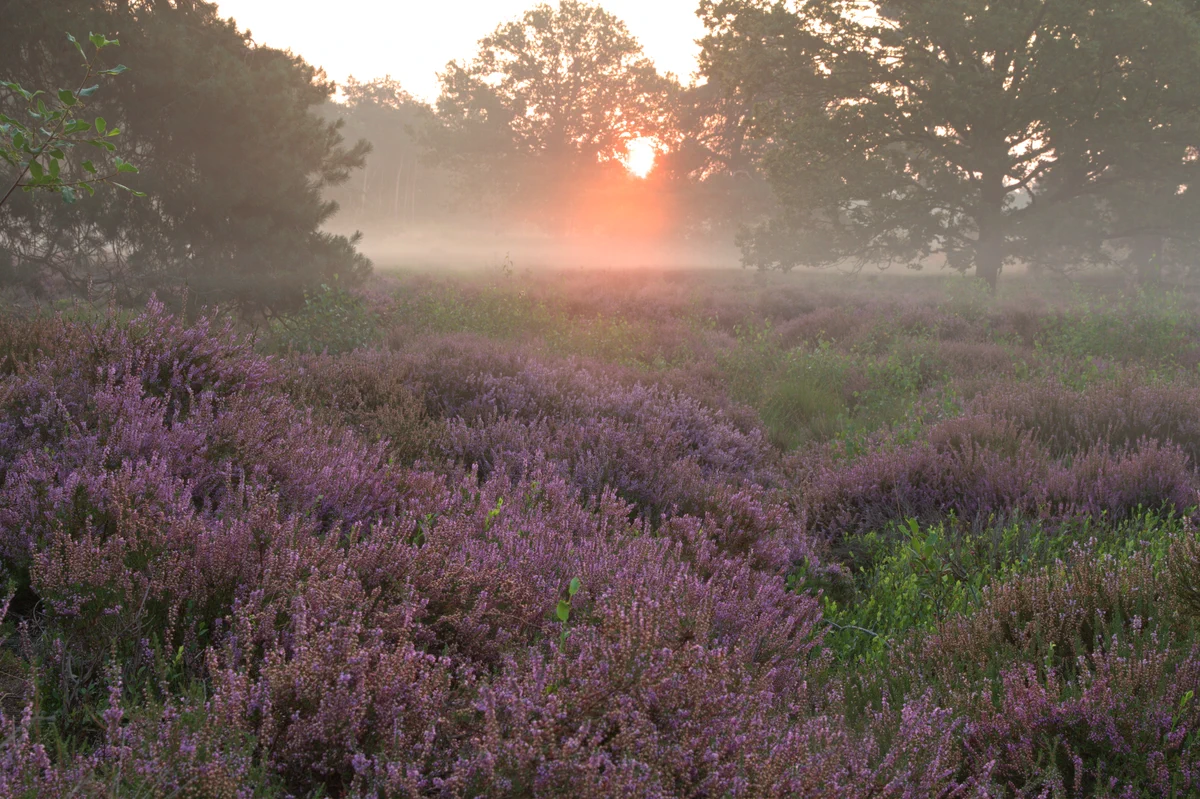 How to edit a RAW photoWhite balance, highlights, shadows and color from the sensor data.Intermediate · 10 min
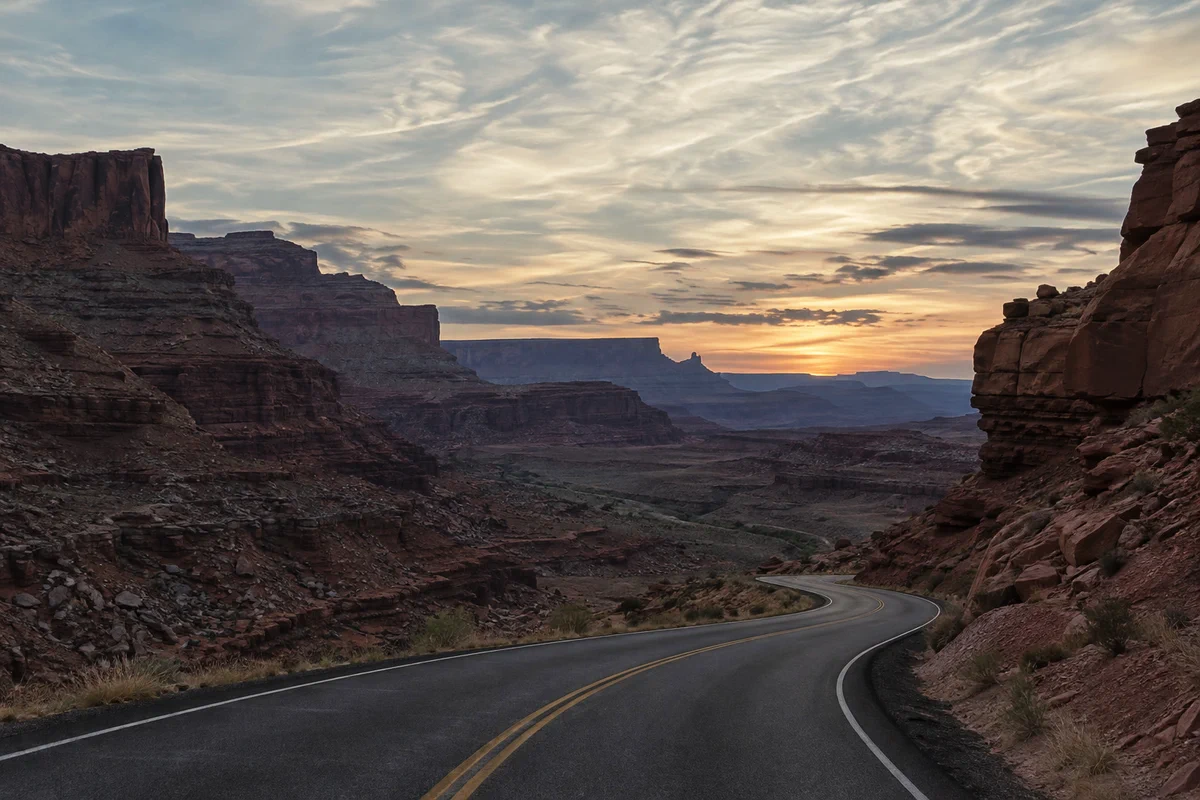 How to use Curves to fix contrast and colorRead the graph, build an S-curve and shift color by channel.Intermediate · 8 min
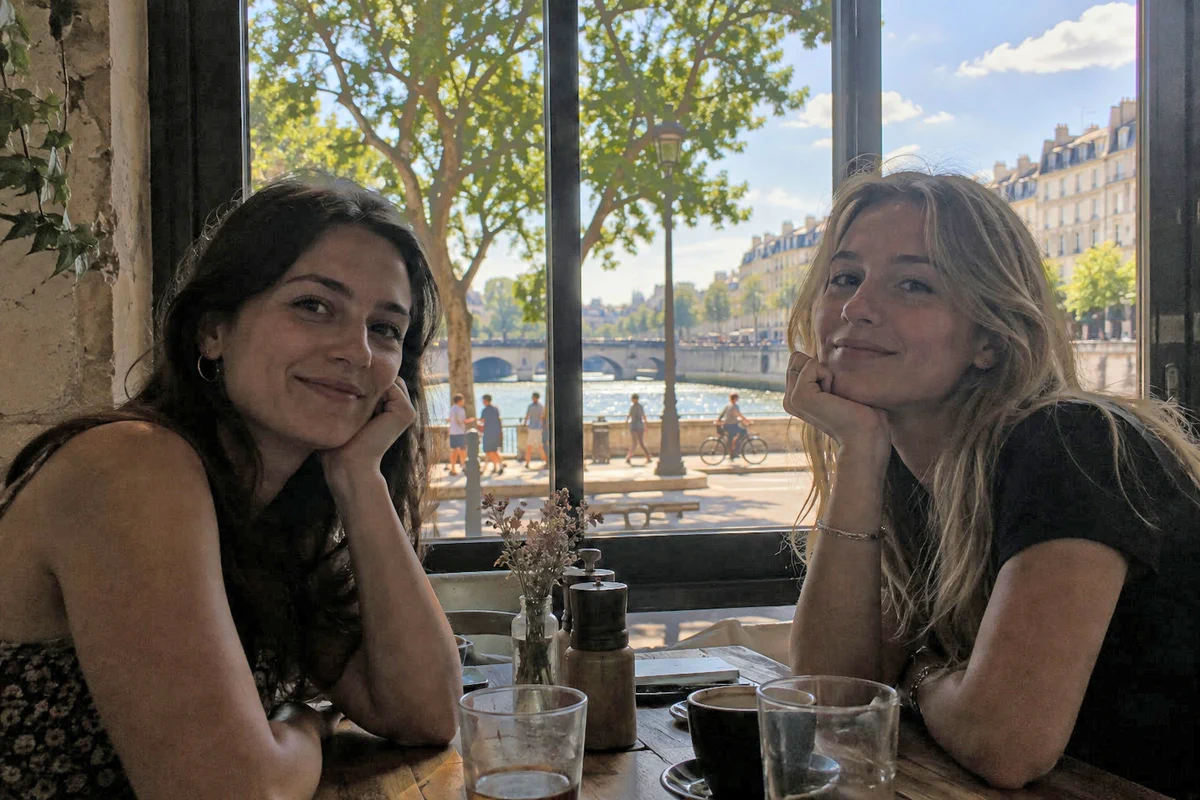 How to fix a dark or backlit photoLift shadows and faces without washing out the window.Beginner · 5 min